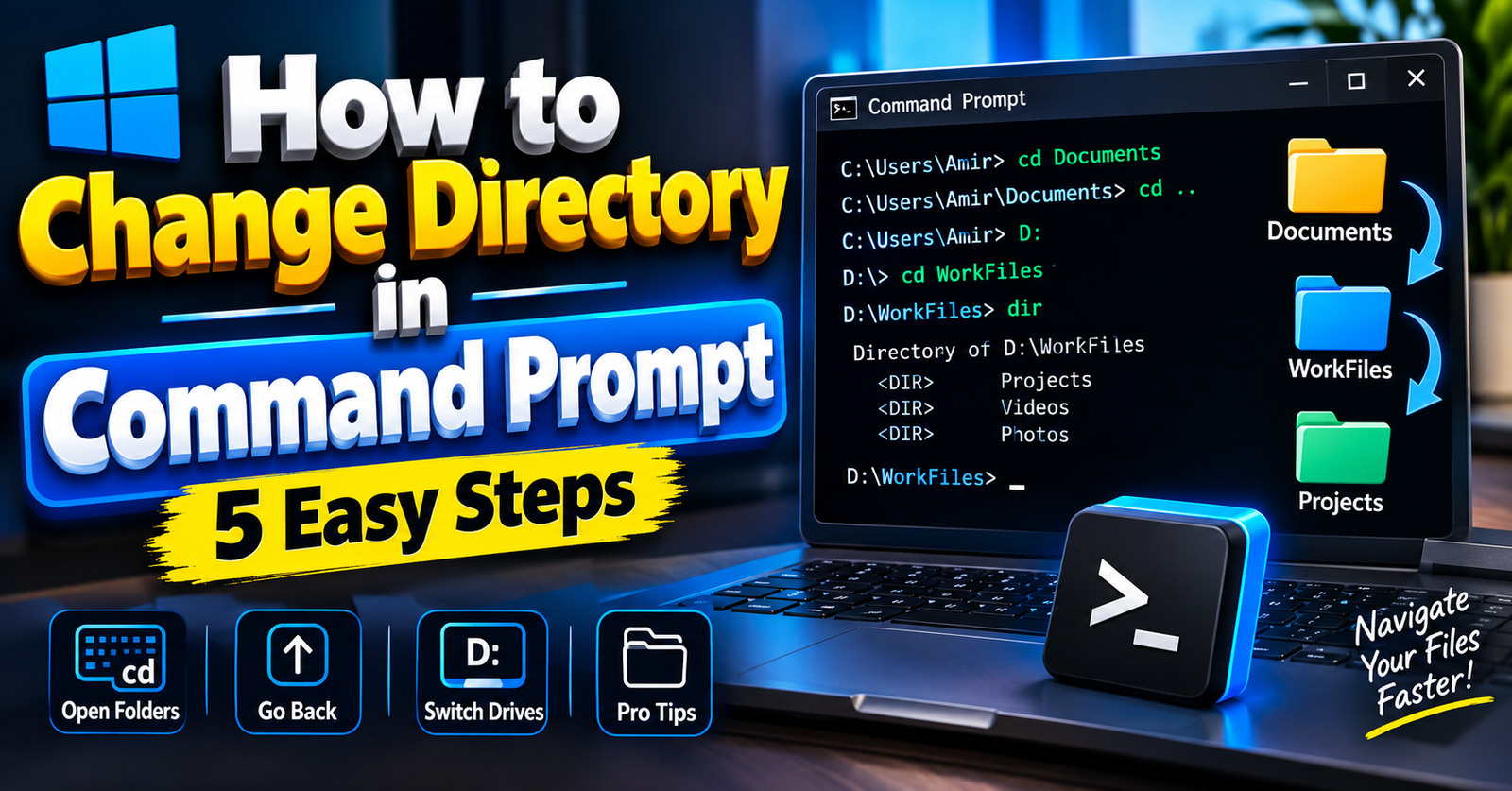
Want to know how to change directory in command prompt? We’ll tell you how! Although navigating folders using the Windows Command Prompt may seem daunting at first, you’ll soon become a pro at moving between folders once you learn a few commands. Below we have provided a full guide to help you!
How to Change Directory in Command Prompt
Windows has a powerful built-in tool called Command Prompt. Rather than using your mouse to click through folders, you can type commands into the command prompt to help manage your files. The main command we use to move between folders is cd (change directory).
When you open CMD for the first time it will usually open into your user profile. For example C:\Users\YourUsername. If your files are located on another drive or within sub folders then you will not be able to access them until you change directories. By learning how to change directories you can quickly manage your computer, troubleshoot issues and become a pro!
How to Open a Folder in Command Prompt
In order to open a specific folder you must know the path of the folder. To change to a specific folder, type cd and then add a space and the path of the folder. For example, if your folder is called ‘Documents’ within your current user directory then you would type cd Documents and press enter.
Important Tips
- If your folder name contains spaces such as ‘My Projects’ then you should put the whole path in quotes. For example
cd "C:\My Projects" - Windows CMD is usually not case sensitive but try to keep your spelling correct to avoid errors.
- You can always see what folder you are currently in by looking to the left of your cursor.
How to Go Back in Command Prompt
There will be times where you need to leave your current working directory. To do this you can use the following command to quickly go back to previous folders.
To go up a folder type cd.. and press enter. This will take you back a folder. If you want to go back to your main directory then you can type cd\ and press enter.
How to Navigate Folders in Command Prompt
If you want to navigate to another drive then there is a special way to do this in Windows. If you are currently on the C: drive and want to go to a folder on the D: drive then just typing cd D:\Folder will not work.
Instead you should type the drive letter you want to go too and then add a colon. For example D:. Once you have changed drives you can use your usual cd commands to change into sub folders.
For Example
- Open your command prompt by searching in the start menu.
- Type
D:and press enter. - Type
cd WorkFilesand press enter. - Check that you are in the correct place by looking at the text in your command line.
Pro Tips
Learning how to change directory in command prompt can save you a lot of time. Here are some useful shortcuts to help you!
- Use tab to autocomplete. Just type the first few letters of the folder and then press the tab key. Windows will autocomplete the rest of the folder name.
- Use drag and drop. Instead of typing lengthy paths, you can drag any folder you wish to open from your Windows File Explorer. The whole path will be pasted into your command prompt.
- If you aren’t sure what folders are available then you can type
dirand press enter.
Essential Tips
Getting to know some useful commands will help you become a pro at using the terminal. Using /d with your cd command means that you can change drives and directories at the same time. For example cd /d D:\Games\Backup.
Try to keep your folders names short so that you can keep your directories tidy. This will reduce the amount you have to type and reduce any typing errors when running complex batch/python scripts or setting up your web server.
Conclusion
Being able to navigate your computer using text based commands is an essential skill to have if you are a developer, IT professional, tech enthusiast or power user. Practicing how to change directory in command prompt allows you to have full control over your windows file system. Try using these commands and you’ll find navigating your files much quicker and more efficient!
Click Here: More Articles