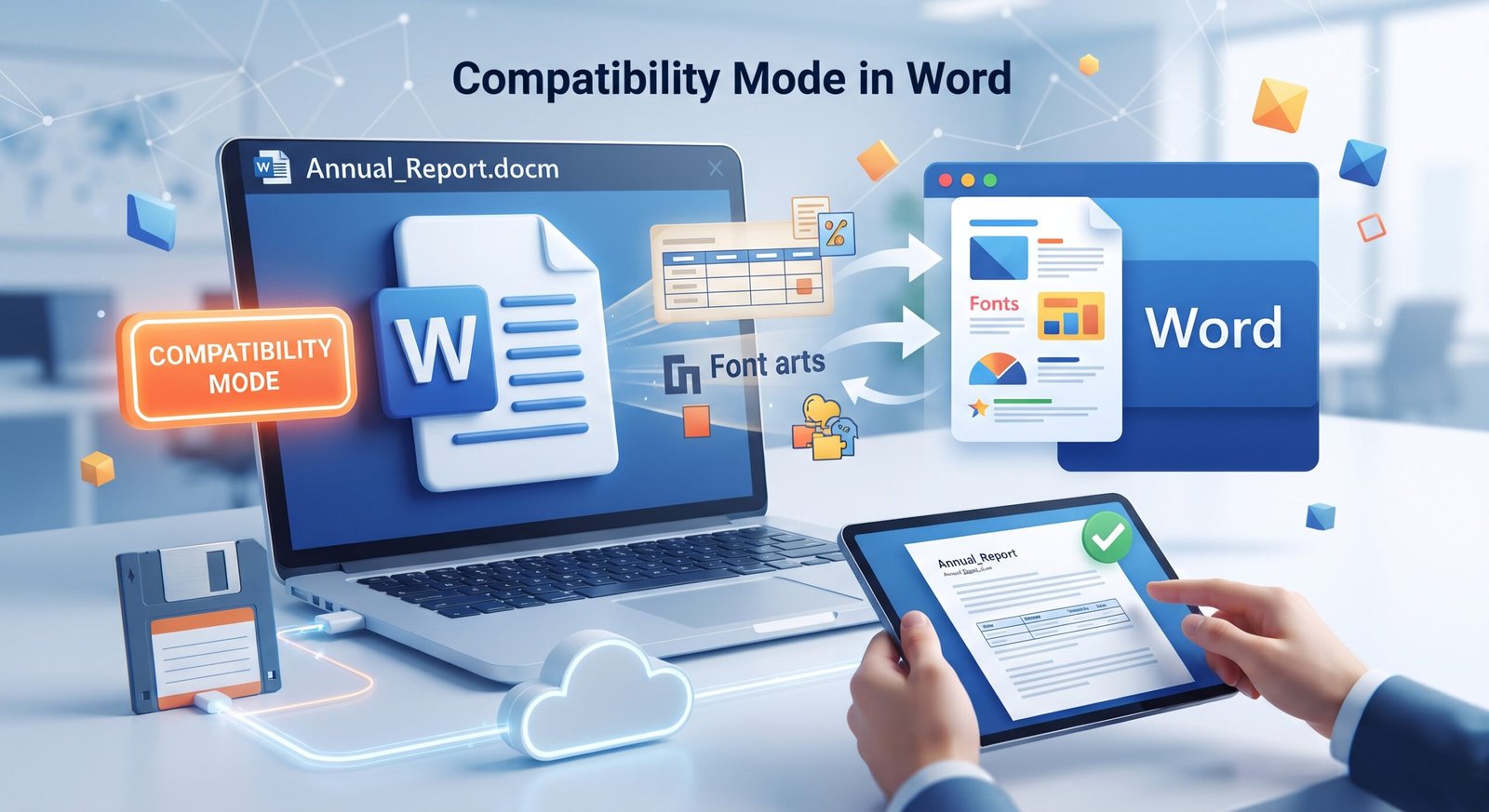
Have you ever opened up a document in Microsoft Word and seen the message ‘compatibility mode in word’ next to your filename? This can cause some confusion.
Compatibility mode in word helps enable older documents to work in the newer Microsoft Word. It disables specific features of newer versions of Word to help maintain the original format. Knowing what is word compatibility mode will help you decide if you need to switch it off or convert your file.
what is word compatibility mode
Compatibility Mode is found in Microsoft Word and allows older documents to function properly in newer versions. If you have a document that was saved using the Word 97-2003 format ( .doc ), then you may notice this feature when opening it with a newer version.
This helps ensure that the document will still appear as intended when opened on an older version of Microsoft Word. However some newer features may not be available until you convert your file.
- Older File Support – Allows you to open/edit documents from previous versions of Word.
- Format Protection – Helps keep the original format of your document.
- Disable Features – Some features of newer Word may not be available.
- Easy to Share – Makes it easy to share documents to those with older versions of Word.
Note: Compatibility Mode doesn’t mean your document is broken or infected. Most of the time it just means that Word is disabling features to keep it compatible with an older format/version.
what is word compatibility mode?
what is word compatibility mode is a setting that helps newer versions of Word work with older documents.
For example, if a colleague sends a report to you that was made on Word 2003, when you open it in Word 2021 you may notice the Compatibility Mode notice. This is because Word is disabling some of the older formatting features to ensure that the report looks as intended on another device.
This can be useful when sharing Word documents between different versions of Microsoft Office.
However, if you are creating a new document then you may prefer to use the newer format (.docx ). These have newer features available and are generally the best option to use.
Why am I getting Compatibility Mode in Word?
Compatibility Mode will usually pop up due to the format or compatibility settings of your document.
Common reasons for this include:
- Older .doc file.
- Older Version – The document has formatting based on an old version of Word.
- Old Template – The document was based on an old template.
- Compatibility Settings – The file has compatibility settings enabled.
You may still see Compatibility Mode even when using the newest version of Microsoft Word. Just because you have updated your Word doesn’t mean that all old documents will automatically convert.
The key thing to remember is that this is related to how Word is handling the document and not necessarily the version of Word on your device.
what is compatibility mode in word?
what is compatibility mode in word is a way to keep your document compatible with older formats and features.
For example, if you have a business report with older tables, fonts and formatting you can keep these by disabling some newer editing features.
This can be useful if you need your document to be compatible with older devices in an office.
However, if you need newer formatting features, editing features or features that aren’t available then you may wish to convert your file.
Before converting any important documents, make sure to save a copy so that you have a safe version to go back to in case the formatting changes.
How to Disable Compatibility Mode in Word
Most of the time you can disable Compatibility Mode by converting your document. To do this follow the below steps:
- Open Document – Open your document in Microsoft Word.
- File – Click the File tab in the top left of your screen.
- Info – Click Info.
- Convert – If there is an option to convert, click this.
- Confirm – Follow any prompts to confirm.
- Save – Save your document and check that Compatibility Mode has been disabled.
Not all versions of Word will show this option.
Alternative Method:
- File – Click File.
- Save As – Click Save As.
Select Word Document (.docx ) as your file type.
This will create a copy of your document in the newer format. Open your new document and check the formatting looks okay before deleting/overwriting your original.
Bear in mind that some formatting may alter when you convert your file. If your document is important then keep the original.
what is compatibility mode word?
what is compatibility mode word is the same as above. It helps older documents work in newer versions of Word.
Most of the time it is a straightforward choice:
- Keep Compatibility Mode – If you regularly share this file with those who have an older version of Word.
- Convert – If you need newer features in Word and don’t need the older version.
- Save a Copy – If you are unsure if converting will affect the formatting.
You don’t always need to convert your documents. If everything is working properly and you don’t need newer features then it can make sense to leave it.
what is compatibility mode?
what is compatibility mode is a setting that helps newer software work with older files/formats.
In Microsoft Word it helps to reduce issues when opening documents between different versions.
For example, an older document may have some formatting that is handled differently in newer versions of Word. Compatibility mode helps to keep everything as intended by disabling some newer features.
Other software may have compatibility modes, however this will depend on the software. In Word it is mainly related to document features.
How to Avoid Compatibility Issues in Word
To help reduce any issues in the future try:
- Use .docx – Use the standard newer document format.
- Save a Copy – Save a copy of your document.
- Check Formatting – Check tables, images, page breaks and headers.
- Ask – Ask those you are sharing with if they have an older version of Word.
- Clear Naming – When saving your converted document give it a clear name such as Report-Updated.docx .
This will help keep your work safe and make it easier to share.
Final Thoughts
Compatibility Mode helps you to open older documents in Microsoft Word whilst keeping them in their original format. It is not usually an issue and you won’t need to disable it unless you need features that require a newer document format.
If you need newer editing features then save a copy and convert your document to .docx using the Convert or Save As option. Knowing what is compatibility mode in word is will help you select the correct format, keep your files safe and avoid any unnecessary formatting issues.
Click Here: More Articles