Need to switch Wi-Fi, adjust screen brightness or control sound on your Mac?
The control center on mac gives you quick access to these settings without opening up the System Settings. It can be found in the menu bar at the top right-hand corner of your screen.
With a click, you can manage common settings, view connected devices, and enable or disable useful features. This guide will tell you where to find Control Center, show you the most common options and tell you what to do if it is missing.
What Is Control Center on Mac?
Control Center is a built-in feature of the Operating System for Apple Mac computers. It offers you a number of controls that let you manage everyday settings, without having to dig down into multiple settings menus.
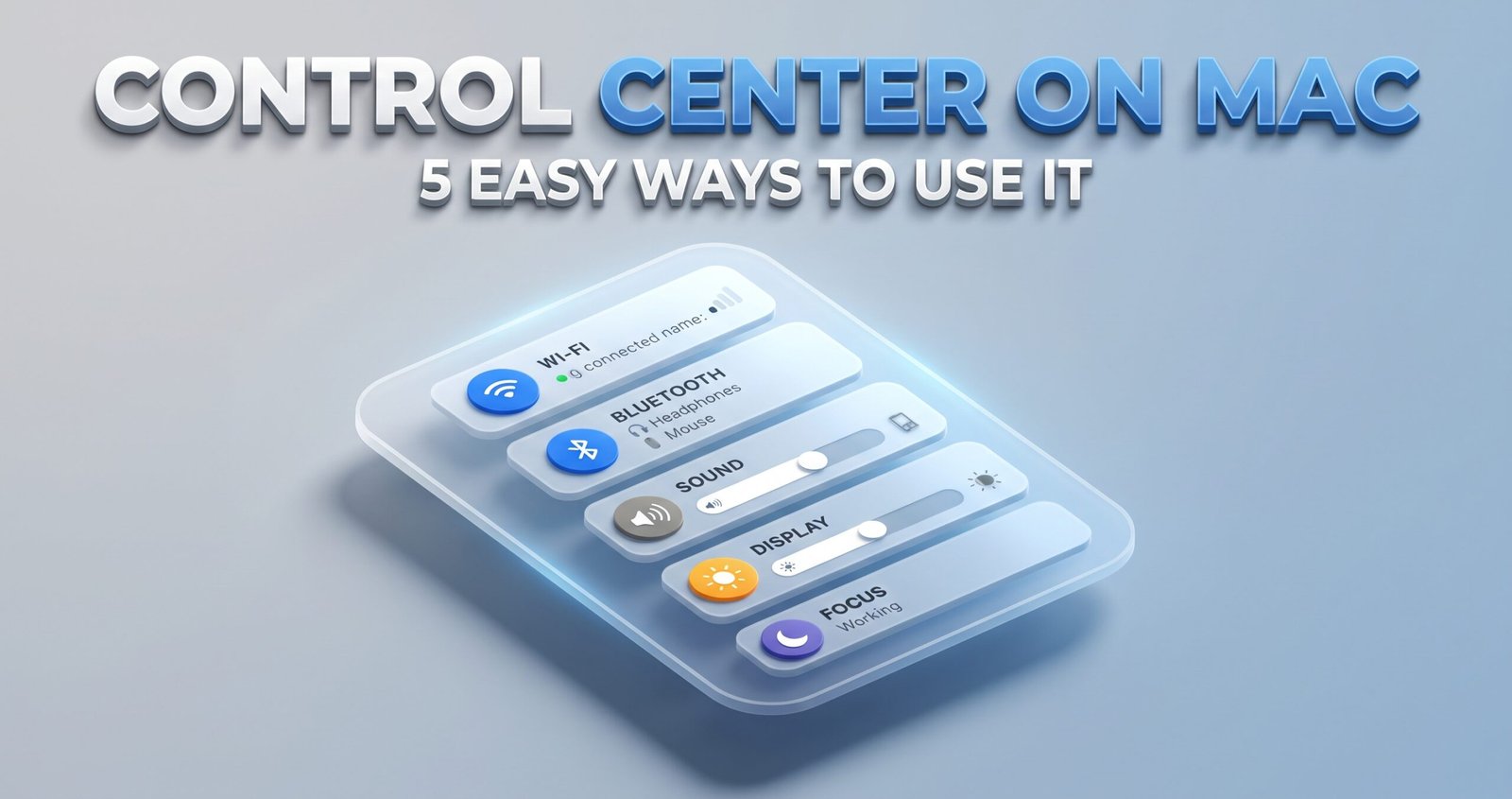
Depending on the specific Mac you are using and the version of macOS, Control Center may be able to offer you:
- Wi-Fi: Connect to Wi-Fi networks
- Bluetooth: Connect wireless headphones, and other devices
- Sound: Manage the volume and connected devices
- Display: Adjust the display brightness and other options
- Focus: Mute notifications when working
- Screen Mirroring: Connect to a compatible display or television
- Keyboard: Adjust the keyboard brightness (available on certain MacBooks)
The options may vary depending on the devices connected to your Mac, your Mac model, and the version of macOS.
Where Is the Control Center on Mac?
If you are wondering where is the control center on mac, look at the top right-hand corner of your screen. You should see the Control Center icon in the status bar, displayed as two horizontal slider switches.
The steps to open it are as follows:
- Power on your Mac, and sign in.
- Look at the status bar on the very top of the screen.
- Look for the Control Center icon near the Wi-Fi icon or other status bar icons.
- Click the Control Center icon.
- Click the setting that you want to change.
You won’t need to install an application or any other software, as Control Center is already included with supported versions of macOS.
Where Is the Control Center on a Mac?
The location is generally the same for both desktop and laptop Macs. If you are asking where is the control center on a mac, look at the top of the display, not the Dock at the bottom of the screen.
The Dock holds your favorite applications, while the Control Center gives you quick access to settings.
Tip: If you have multiple displays, the menu bar will only appear on the display it is currently on. Menu bar behavior can vary depending on your display and desktop settings.
Where Is Control Center on MacBook?
On a MacBook Air or MacBook Pro, Control Center is usually in the upper right-hand corner of the screen.
To open it, you will need to click the Control Center icon in the menu bar. You can then adjust any of the settings which are available on your MacBook Air or MacBook Pro, including Wi-Fi, Bluetooth, sound, and display brightness.
If you are using an external monitor with your MacBook, the menu bar may appear on a different display, depending on your macOS settings. If you can’t see the icon immediately, check the top edge of the active screen.
How to Use Control Center on Mac
Now that you have opened the panel, you will be able to manage some of the most common settings.
Here are five ways to use Control Center on your Mac.
1. Connect to Wi-Fi
- Open the Control Center.
- Select Wi-Fi.
- Toggle Wi-Fi on if Wi-Fi is currently off.
- Select a Wi-Fi network and complete the connection process.
If the Wi-Fi network is not visible, ensure that your router is working correctly and the Mac is in range.
2. Turn Bluetooth On or Off
- Open the Control Center.
- Select Bluetooth.
- Toggle Bluetooth on if Bluetooth is currently off.
- Connect your Mac to your desired wireless device.
If your headphones aren’t connecting, make sure they are fully charged and ready to pair.
3. Adjust Sound and Volume
Click on the Control Center and select the Sound control. Toggle the available slider to adjust the sound volume, or select a connected audio output device, if the option is available.
This is particularly useful when you want to switch between the built-in speakers of your Mac, headphones, and an external speaker.
4. Change Screen Brightness
Open the Control Center and look for the Display control. Adjust the brightness slider to make the screen more legible.
Lowering the screen brightness can also help prevent eye strain in a dark environment. The available display controls will depend on your Mac and monitor.
5. Enable Focus
Focus lets you mute and disable distractions when studying, working, and during other important activities.
- Open the Control Center and select Focus.
- Choose one of the available Focus modes.
- Toggle it off when you want to allow notifications again.
You can customize your Focus options in the System Settings.
How to Customize Control Center on Mac
You can customize which controls appear in the menu bar and, depending on your macOS version, a few other settings. Follow these steps:
- Click on the Apple menu in the top left-hand corner of your screen.
- Open up the System Settings.
- Select Control Center in the left-hand sidebar.
- Look over the available controls and menu bar options.
- Change the settings you want to appear or disappear.
Some controls may give you the option of appearing in the menu bar, in the Control Center or both. You may not be able to customize every control in the same way.
If you aren’t seeing a specific option, look at your macOS version, as the look and feel of Apple’s settings and available controls can change.
How to Fix Control Center Missing on Mac
If the Control Center icon is missing, here are a few practical checks to try.
- Check System Settings: Open the System Settings and select Control Center to look at the available menu bar options.
- Restart your Mac: This can help if a problem occurred while the Mac was running.
- Check your macOS version: The look and feel of Control Center can vary.
- Look at the correct screen: If you have multiple displays, the menu bar may only appear on one display.
If the icon is still not visible, check Apple’s support documentation for your version of macOS or look at your Mac’s system settings.
Where Is Control Center on Mac and What Should You Remember?
The control center on mac is normally located in the upper right-hand corner of the menu bar. Click on the icon to get useful controls for Wi-Fi, Bluetooth, sound, brightness, Focus, and more.
Bear in mind:
- The control center on mac is built into macOS.
- The location is generally the same for both MacBooks and desktop Macs.
- You can customize some of the controls in System Settings.
Once you know where to find it, you can manage common Mac settings in seconds, as opposed to opening up multiple different menus.
Click Here: More articles