How to Disable Hardware Acceleration Across Browsers and Apps
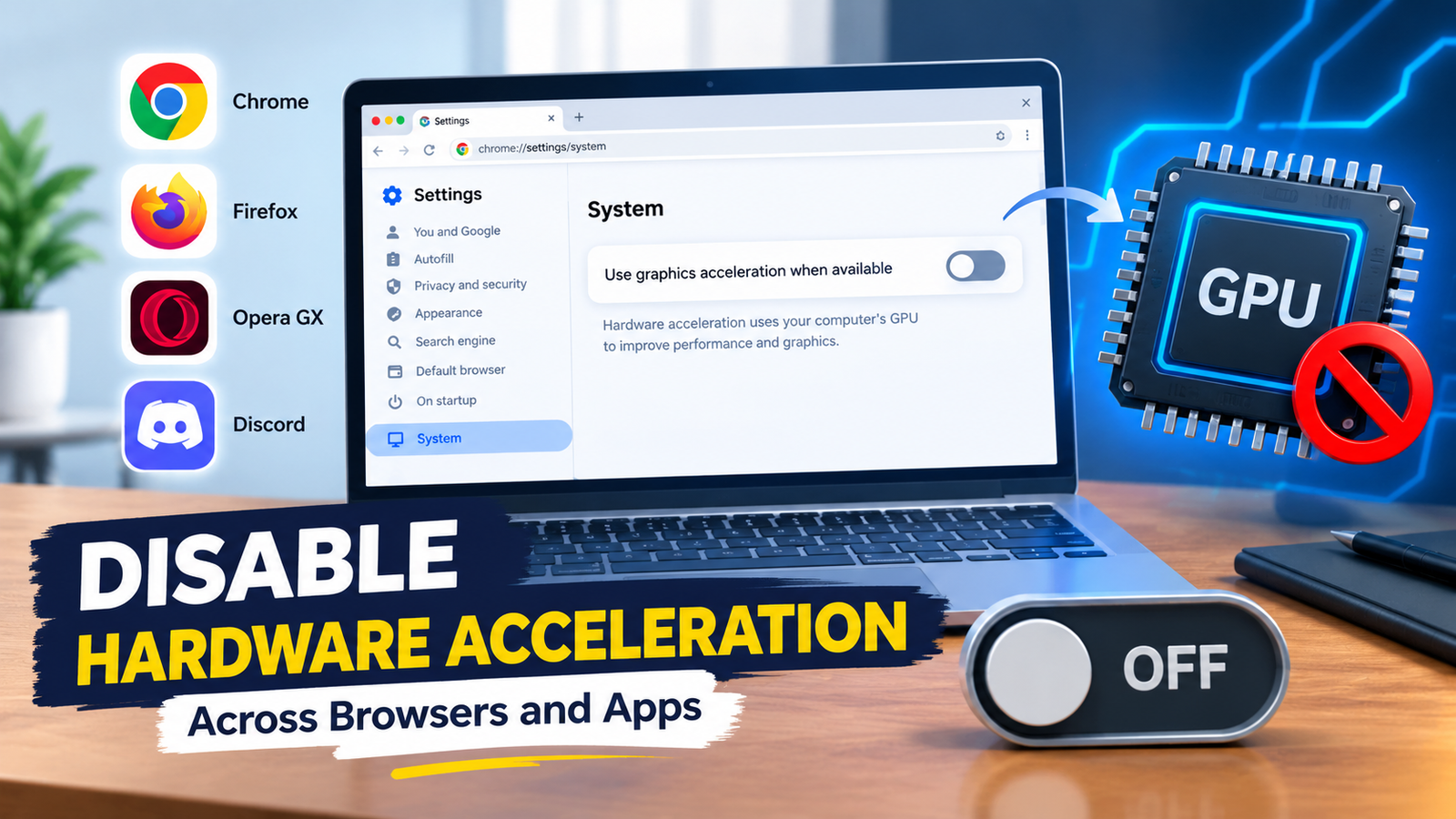
Is your browser constantly freezing, flickering, or crashing? You might want to turn off one particular feature that accelerates applications through your pc’s graphics processor.
You can disable hardware acceleration for Google Chrome, Firefox, Opera GX, and Discord. The process is slightly different for each app or site, but we’ve covered all of the most common places a user may encounter graphical issues. Read through the steps below to fix any display problems and see if graphics acceleration was the root cause of your issue.
What Is Hardware Acceleration?
Hardware acceleration is a feature that enables applications to utilize the power of your pc’s graphics processing unit (GPU) rather than using the central processing unit (CPU.)
Though this may help with smoother animation and video display, conflicting hardware drivers or graphics processors can cause:
- Screen flickering
- Browser freezes
- Black screen display
- Issues with recording and sharing video
While disabling hardware acceleration can rule out this cause, it may also tax your cpu processes more heavily depending on your pc specs and the graphic demands of the application.
How to Turn Off Graphics Acceleration
The instructions below mainly apply to desktop applications — hardware acceleration settings may be absent or slightly different across mobile versions.
how to disable hardware acceleration chrome
Google Chrome browsers offer an easy system setting for graphics acceleration.
- Launch Google Chrome on your desktop.
- Click the three vertical dots on the top right.
- Select Settings.
- Look under System or search settings for graphics acceleration.
- Find the option labeled “Use graphics acceleration when available” or similar.
- Toggle it off.
- Click Relaunch if available.
After chrome restarts, visit the site or playback the video that originally caused the issue.
If you do not see that option, consider updating your chrome browser and returning to these settings. You can also refer to Google’s official Chrome support documentation.
how to disable hardware acceleration in firefox
Mozilla Firefox provides slightly more steps to disable graphics acceleration.
- Open Firefox and click on the menu button.
- Select Settings.
- From the left-hand menu choose General.
- Scroll down to the Performance section.
- Uncheck “Use recommended performance settings”.
- Uncheck “Use hardware acceleration when available”.
- Close and relaunch Firefox.
Unchecking recommended performance settings will reveal additional preference options. As always, make sure to restart the browser after toggling these settings and test if the display issue still occurs.
For further reference, you may also consult Mozilla’s performance settings documentation.
where to turn off hardware acceleration in discord
Discord offers several video and call-specific acceleration settings that may conflict with your display or graphics drivers.
- Open up Discord on your desktop.
- Click on the Gear icon next to your name.
- Open User Settings and select Advanced.
- Look for a Hardware Acceleration toggle.
- Turn it off and restart discord if necessary.
- Test the application again.
Some users may experience video distortion or freezing only during calls and screen sharing. In this case, you may want to look at Voice & Video settings and disable hardware acceleration from there. This process may be slightly different depending on your discord version.
Remember that disabling acceleration in one location will not stop it from occurring elsewhere. You can consult Discord’s official support documentation for further reference.
how to disable hardware acceleration opera gx
Opera GX is essentially a modified version of Chrome, so the process will be very similar:
- Open up Opera GX.
- Hit Alt + P on Windows or use the menu bar and select Settings.
- Search for graphics acceleration or type
opera://settings/systeminto the url bar. - Find “Use graphics acceleration when available”.
- Toggle it off.
- Restart the application if necessary.
Visit the page or video that originally froze and test if turning off graphics acceleration fixed the issue. You might still see the “use graphics acceleration” option greyed out. In this case, you may want to update your browser before experimenting with other settings.
What Happens When You Disable Graphics Acceleration?
Turning off graphics acceleration generally does not disable core features of the application. However, it can affect the way that videos and websites are rendered in your browser. The main benefits of disabling this feature are:
- Fixes incompatible hardware crashes
- Stops screen flickering
- Fixes black screen display
- Improves recording compatibility
On the other hand, the potential downsides of disabling hardware acceleration are:
- Increased cpu usage during playback
- Slower animation and website performance
- Potential overheating of your computer
These downsides will affect users differently depending on their pc specs, and you should always update hardware drivers before disabling this feature. If you experienced increased cpu usage and poor performance, reactivate graphics acceleration to return to normal performance.
What If That Doesn’t Fix the Problem?
In some cases, turning off hardware acceleration might not resolve the issue. You can try the following measures to fix browser crashes and poor performance:
- Update graphics drivers – You can update your graphics drivers via your pc manufacturer’s site or directly on your Nvidia/AMD graphics card dashboard.
- Update the application – Make sure you have the latest stable version of your browser or discord.
- Disable browser extensions – One or more extensions may be causing the application to malfunction.
- Clear cache – Sometimes, the application or website may crash due to a corrupt file.
- Close background processes – Too many background processes can tax your cpu and ram.
- Restart your pc – This will clear minor conflicts between applications.
Click the link for more: more aritcles
Overall, turning off graphics acceleration is an easy way to fix browser crashes and screen flickering. Simply navigate to settings and disable the graphics acceleration option.
If this fails to resolve the issue, update your graphics drivers and applications before following the steps above. Finally, remember to re-enable this feature if you notice reduced performance after disabling it.