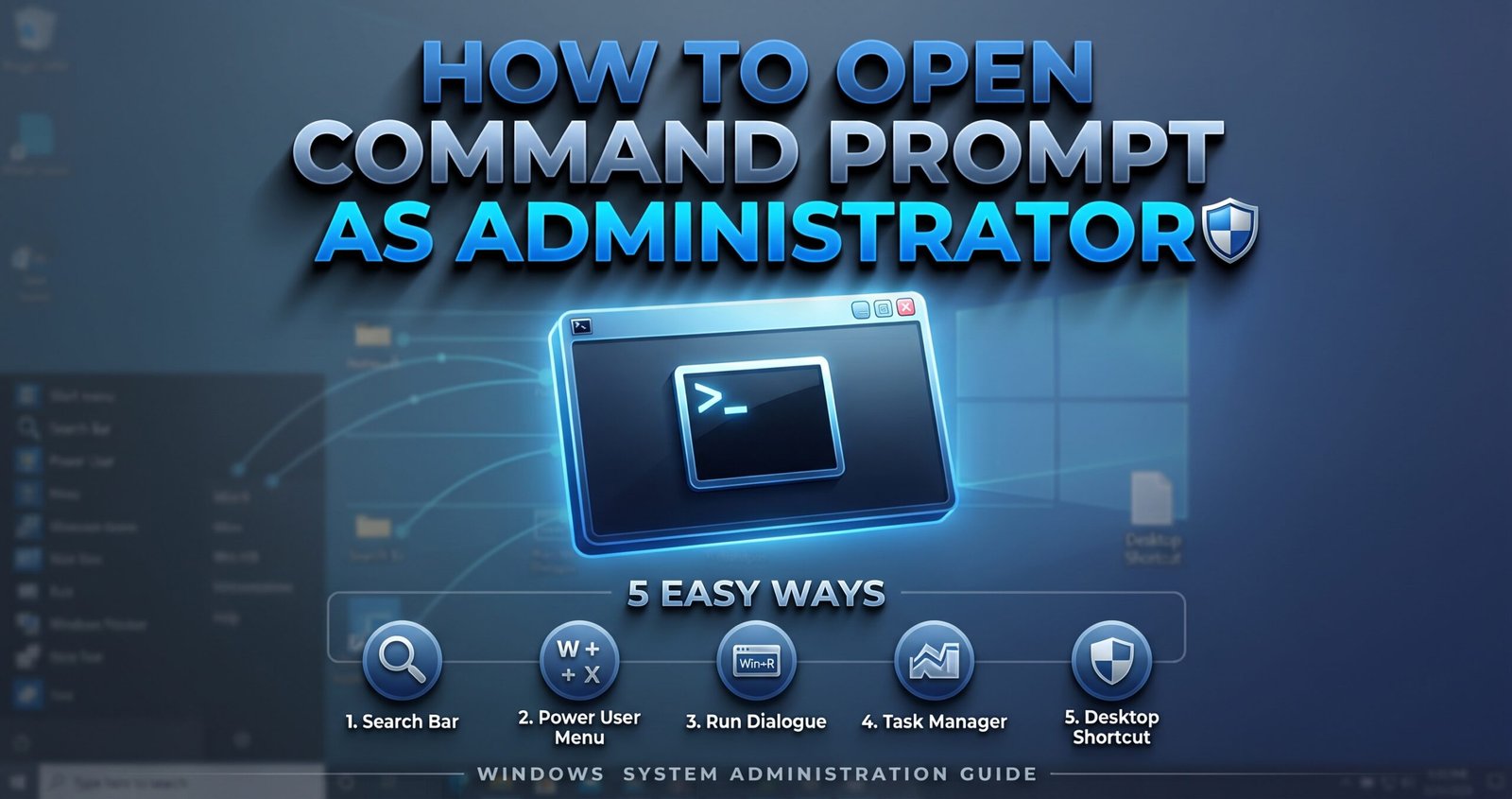
When making changes to your Windows system, it’s important to understand how to open command prompt as an administrator. Using the command prompt with regular account rights will prevent you from performing more advanced tasks such as network scanning and fixing corrupt system files.
However, after learning how to open command prompt with admin rights in just a few seconds you can perform 5 easy ways to open CMD with admin rights. Let us show you how.
What is an Elevated Command Prompt
Before we get into the step by step, let’s explain a little about what is an elevated command prompt is and why your computer needs one.
An elevated command prompt allows you to run CMD with admin rights. Windows has a built-in protection tool called User Account Control (UAC) which prevents regular applications from being able to edit certain system files, registry keys and drivers.
When you open up CMD normally it will run under a restricted user session. However, if you want to open an elevated instance you will gain admin rights to run certain commands such as sfc /scannow, DISM and netsh.
Basic CMD will allow you to run regular tasks, whereas elevated CMD will override any limitations so that you can fix any Windows issues, manage disks and configure your system security.
How to Open Elevated Command Prompt
There are multiple ways to run elevated command prompt. Here are 5 easy ways to open elevated command prompt on Windows 10 or 11.
Method 1 – Using Search Bar (Fastest Way)
The fastest way to open admin tools is to use the search bar within the start menu.
- Hold down the Windows Key or click the Start button.
- Type
cmdorCommand Prompt. - On the right-hand side of the search results click Run as administrator.
- Click Yes on the User Account Control prompt.
Pro Tip: You can also type
cmdand hold downCtrl + Shiftand pressEnter.
Method 2 – Power User (X Menu)
Windows has a hidden power menu that allows you to open admin tools.
- Hold down
Windows Key + Xor right-click the Start icon. - Click Terminal (Admin) or Command Prompt (Admin).
- Click Yes on the User Account Control prompt.
Method 3 – Run Dialogue
If you prefer using keyboard shortcuts you can use the run dialogue.
- Hold down
Windows Key + R. - Type
cmd. - Press
Ctrl + Shift + Enter(You can press Enter alone to open basic CMD). - Click Yes on the permissions prompt.
Method 4 – Using Task Manager
If your desktop is frozen you can use the Task Manager to open admin commands.
- Hold down
Ctrl + Shift + Esc. - Click Run new task or click File > Run new task.
- Type
cmd. - Tick Create this task with administrative privileges.
- Click OK.
Method 5 – Create Shortcut to Admin
If you use admin rights often you can create a shortcut.
- Right-click on your desktop and click New > Shortcut.
- Type
cmd.exeinto the location box and click Next. - Give your shortcut a name and click Finish.
- Right-click your new shortcut and click Properties.
- Click Advanced on the Shortcut tab.
- Tick Run as administrator and click OK and Apply.
How to Open Command Prompt as an administrator from File Explorer
Sometimes you will need admin rights when working within certain folders. Knowing how to open command prompt as an administrator from File Explorer will save you time.
Follow the below steps.
- Open up File Explorer and navigate to
C:\Windows\System32. - Find the file named
cmd.exe. - Right-click
cmd.exeand click Run as administrator. - Click Yes on the User Account Control security prompt.
Quick Tip: Check the title bar of the command prompt. If it says
Administrator: Command Promptand is located inC:\Windows\System32then you have given it full admin rights.
How to Open Command Prompt in a Folder
When working within deep folders it can get tedious having to type long folders names in CMD. Knowing how to open command prompt in a folder will save you time.
Open CMD in Any Folder Using Address Bar
Open File Explorer and navigate to your desired folder.
- Click in the blank space of the address bar at the top.
- Type
cmdand pressEnter.
This will immediately open Command Prompt in the selected folder.
Open as Administrator in Specific Folder
If you need to open CMD with admin rights in a certain folder follow the below steps.
- Open File Explorer and navigate to your desired folder.
- Click in the address bar and type
cmd. - In the CMD window type
powershell Start-Process cmd -Verb RunAsand pressEnter. - Click Yes on the UAC prompt.
How to Run an EXE in Command Prompt
Once you’ve opened your command terminal with the correct permissions you may need to run some scripts or installers. Knowing how to run an exe in command prompt allows you to use silent switches, custom install locations and see any debug information.
Running Executable Files
- Open Command Prompt with admin rights.
- Navigate to where your executable is by typing
cd.(E.gcd C:\Users\YourName\Downloads) - Type the name of your executable (including
.exe) and pressEnter.(E.gsetup.exe)
If there are any spaces in the path wrap the whole thing in double quotes.
"C:\Program Files\My App\setup.exe"
If you want to see what switches/parameters are available for any program type the name of the program with /?.
setup.exe /?
Summary
Knowing how to open command prompt as an administrator will give you full control over your Windows Operating System. Whether you use the Windows Key + X menu, search bar or run box you can open elevated command prompt in just a few keystrokes.
- Use
Ctrl + Shift + Enterwhen using the search bar or run box. - Always check the title bar for
Administrator:. - Type
cmdinto the address bar in File Explorer.
Using these methods you can easily manage your system settings, run repair tools and troubleshoot any issues.
Click Here: More Articles