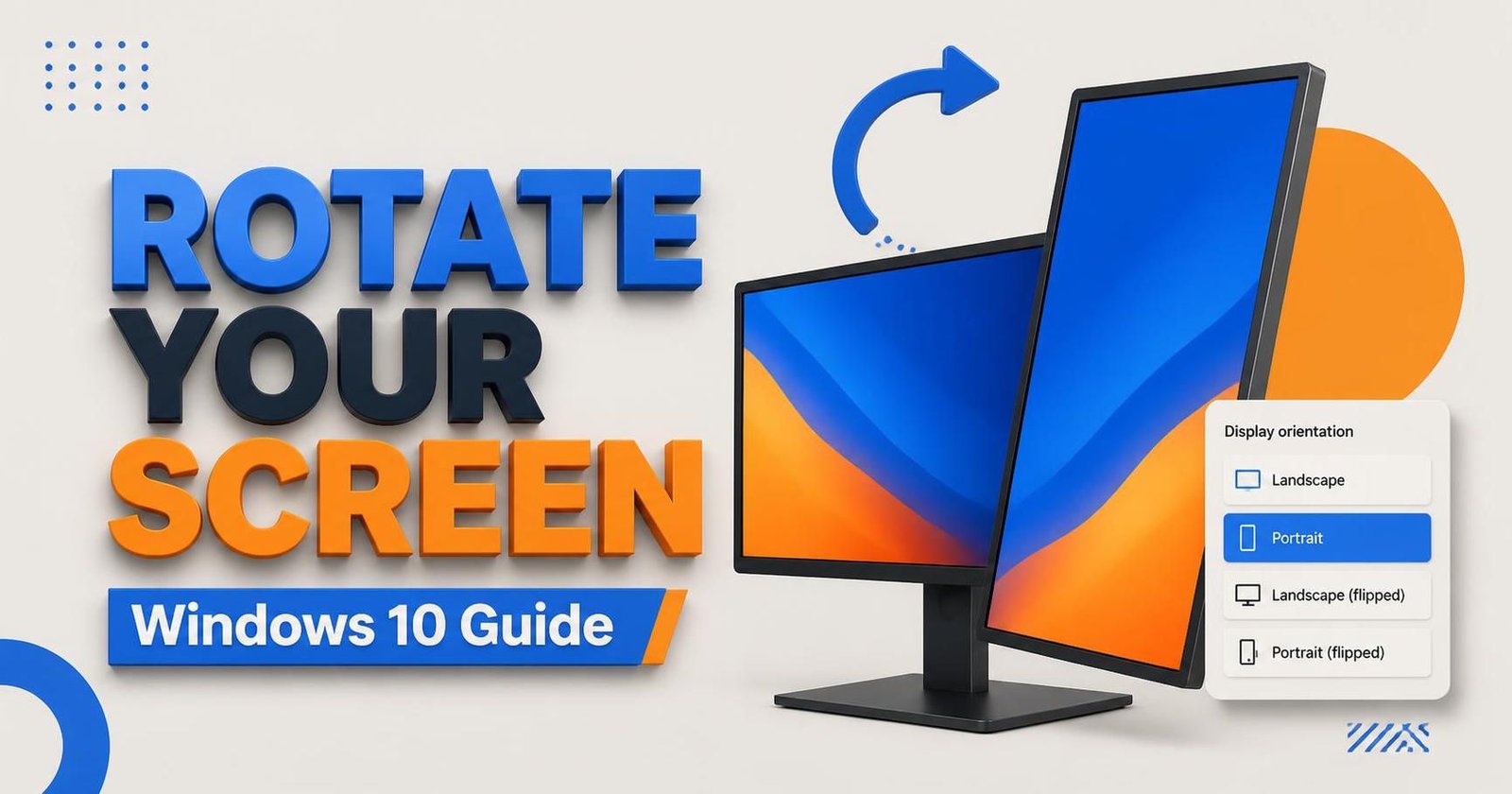
Having your screen rotated sideways or upside down can cause frustrations for even simple tasks. The best way to quickly sort this is by opening the Display settings, selecting the correct orientation and confirming your selection. This guide will show you how to rotate screen windows 10 using settings, keyboard shortcuts and graphics settings, along with troubleshooting tips for when you have issues.
Being able to rotate your screen can be helpful when viewing large documents, code or monitors that can be rotated to a vertical orientation. Windows lets you adjust the orientations of your displays if you have more than one screen.
how to rotate screen windows 10
The most reliable way to rotate your screen is using the Windows Display settings. This can be used if your graphics driver does not support rotation shortcuts.
- Right click on any blank space on your desktop and open Display settings.
- If you are using multiple monitors select the correct display that you want to change.
- Scroll down to Display orientation and select Landscape, Portrait, Landscape (flipped) or Portrait (flipped).
- Click Keep changes.
Landscape is the standard horizontal view. Portrait rotates your screen by 90 degrees. Flipping the screen will invert the direction. If your display does not look correct, simply go back to the same menu and select Landscape or another orientation.
rotate screen windows 10
Using rotation shortcuts can be a quick way to rotate your screen, however they won’t be available on all systems. Try using the following shortcuts whilst your cursor is on the screen you want to change:
- Ctrl + Alt + Up Arrow – will rotate your screen to standard landscape.
- Ctrl + Alt + Right Arrow – will rotate your screen 90 degrees to the right.
- Ctrl + Alt + Left Arrow – will rotate your screen 90 degrees to the left.
- Ctrl + Alt + Down Arrow – will rotate your screen upside down.
If you have no luck, simply use the Display settings. These shortcuts will depend on your graphics hardware and driver. Some systems may need you to enable the hotkeys within the graphics software. They may also only change the display that currently has focus, so ensure that your cursor is on the correct monitor. Tom’s Guide
screen flip windows 10
A screen flip can be when you rotate your screen upside down or flip it to a portrait orientation. Within Display settings, Landscape (flipped) will rotate your screen upside down. Portrait and Portrait (flipped) will give you the vertical orientations.
To undo a screen flip accidentally, open Display settings and select Landscape. If your system supports the keyboard shortcut, pressing Ctrl + Alt + Up Arrow may change it back. However, using the settings is the safest option.
rotate computer screen windows 10
If you have a vertical monitor, try rotating the screen using the stand first. Once rotated, open Display settings and select the correct monitor. Then select Portrait from Display orientation. Click Keep changes and your image should match your monitor.
If you have multiple monitors, ensure you select the correct screen from the diagram. Otherwise you may end up rotating the wrong monitor. You can also use the diagram to identify which monitor Windows has labelled as 1 or 2. If your image does not match your monitor, change the orientation back again and select the other display.
how to turn screen on windows 10
If you want to rotate your image back to normal from being sideways/upside down, simply select Landscape from Display orientation. If you want your tablet screen to auto rotate when you turn it, check the Rotation lock setting in Settings or Action Centre. This will only be available on supported devices and may not be available or turned off on some laptops. Windows Central
If you have a supported tablet/convertible, open Settings > System > Display. Look for Rotation lock and turn this off. Rotate your device. If your device is in laptop mode or has a keyboard attached, this setting may not be available.
Troubleshooting
If you cannot see the drop-down menu for orientation or cannot use any shortcuts, try the following:
- Display settings – Keyboard shortcuts may not be available or turned off.
- Correct monitor – If you have multiple displays, ensure you select the correct monitor.
- Rotation lock – If you have a supported tablet, ensure that your device isn’t locked.
- Graphics software – Intel, NVIDIA or AMD graphics software may have settings to rotate your screen. This will depend on your graphics hardware and driver.
- Update display driver – If you cannot see any options to rotate your screen or your display acts strangely, check if there is an update for your graphics driver.
Just because you cannot see the Rotation lock setting doesn’t mean anything is wrong, this will only be available on compatible devices. If you cannot use the keyboard shortcut it does not mean you cannot rotate your screen using Windows settings.
Top Tips
Use Landscape for general use, videos and most games. Portrait can be used to fit more lines of documents or code on the screen. Flipping your screen is mainly useful for a particular setup or to fix an upside down image.
Ensure your monitor can be rotated using the stand and that your cables aren’t too tight. Once rotated, adjust your monitor and Windows scaling to ensure your text and icons are easy to read.
The easiest way to how to rotate screen windows 10 is by using the Display settings. Select the correct monitor, choose your orientation and click Keep changes. If you’ve rotated your screen by accident, simply change it back to Landscape. If you’re having issues with your tablet auto rotating, check the Rotation lock setting.
Click Here: More Articles